
Jump to a section
When your business is just starting out, you manage everything. But as you grow, success means building a team you can trust. You bring on new staff, work with an accountant, and rely on partners to help get the job done. The question is, how do you give them the financial tools they need to be effective, while keeping firm control over your company's spending?
That's why we've enhanced our team management feature from the ground up. We're introducing a more powerful and flexible way to set user roles and permissions, giving you the confidence to delegate financial tasks securely. It's a system built to grow with your business, making it easier for your whole team to work together.
Understanding the user roles in your account
The foundation of our team management feature is a set of clear, distinct roles. You can choose the one that best fits each team member's responsibilities, from basic card access for an employee to comprehensive oversight for a business partner.
Administrator
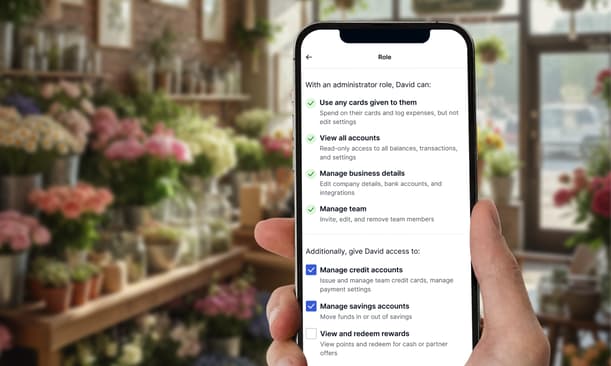
This role is designed for a trusted individual, like a co-director or partner, who needs significant oversight and management capabilities. An Administrator can:
-
Use any cards given to them for business spending.
-
View all accounts, giving them read-only access to balances, transactions, and settings.
-
Manage business details, including editing company information, bank accounts, and integrations.
-
Manage the team by inviting, editing, and removing other team members.
Accounts
Perfect for your bookkeeper, accountant, or finance team, the Accounts role provides the access they need to manage the books without being able to change core business settings. A user with the Accounts role can:
-
Use any cards assigned to them.
-
View all accounts with read-only access to balances and transactions.
-
View business details like company information and bank accounts.
-
Manage accounting exports and integrations to connect software and export transactions.
Employee
The Employee role is the most straightforward and secure option for general team members. It gives them the spending power they need while protecting sensitive company information. An Employee can:
-
Use any cards given to them for their role.
-
View their own activity and settings only, without access to wider account balances or company settings.
Add extra control with advanced permissions
For your Administrator and Accounts roles, you can now add another layer of control with our new Advanced Permissions. These are specific, high-level capabilities you can grant to trusted team members, allowing them to take key tasks off your plate.
You can assign one or more of these permissions:
-
Manage credit accounts: Allows the user to issue and manage team credit cards, set spending controls, and oversee payment settings.
-
Manage Savings accounts: Gives the user permission to move funds in and out of your business savings account.
-
View and redeem rewards (Coming soon): A user with this permission will be able to view your points balance and redeem rewards for cashback or partner offers.
A team member can be assigned multiple permissions at once. For example, your business partner could be an Administrator with both ‘Manage credit accounts’ and ‘Manage savings accounts’ permissions.
How to set up roles and permissions for your team
Getting your team set up is simple. You can either invite a new person with the right access from day one or upgrade an existing user's role.
Adding a new team member
-
Navigate to the ‘People’ page in your online portal or app.
-
Select 'Add a new person' and enter their contact details.
-
Choose a role for them: Administrator, Accounts, or Employee.
-
If you selected Administrator or Accounts, you can now grant them advanced permissions like Manage credit accounts or Manage savings accounts.
-
Decide if you want to issue them a card and set any spending controls, like monthly limits or ATM blocks.
-
Review the summary of their new role and permissions, then send the invitation.
Upgrading an existing team member's role
-
From the ‘People’ page, select the user whose role you want to update.
-
Click the new ‘Manage role’ button under their current 'User Role'.
-
From here, you can change their base role or add and adjust their advanced permissions as needed.
Why these new permissions make managing your business easier
This enhancement is designed to give you more time back in your day while keeping your account secure.
-
Delegate with confidence: You can grant specific access to key team members without sharing your own login details, which can improve your account's security.
-
Boost team efficiency: Your office manager can handle employee cards while your accountant manages savings, allowing tasks to be completed faster without you needing to be the bottleneck.
-
Maintain ultimate control: As the main account holder, you have a clear overview of who can do what. This helps with accountability when it comes to managing your business expenses effectively.
-
Built for how you work: These roles are designed for real-world business structures, whether you have a co-director, a bookkeeper, or a trusted partner helping you run the show.
The bottom line
Our enhanced team management feature gives you the granular control you need to delegate financial tasks securely and efficiently. By assigning clear roles and specific advanced permissions, you can empower your team to support you where you need it most. This frees you up to focus on the bigger picture: running and growing your successful business.